Issues
Overview
An issue is one unit of work with a clear limit. An issue can be a record of a requirement, a part of the code, or a correction of a small fault. Each issue must be specific. A reader must see the goal of the issue, and the contribution of that issue to the project.
If an issue holds more than one task, and each task needs its own record, divide the issue into sub-issues. The work is then clear, and you see the progress of each smaller step.
How to create an issue
- Open the screen for a new issue. Press the
Ckey, or click the+icon at the bottom left of the navigation bar. - Let the AI write the title. The system writes a title from your description. Give a full explanation of the issue, and the system does the rest.
- Let the AI help you. As you write, the system offers a label and an assignee for the issue.
The AI features need an endpoint with the OpenAI interface. Your instance can use a hosted endpoint or a local one. See AI features. If your instance has no endpoint, the interface hides these features. It does not show a control that cannot work. You then create an issue as normal, and you type the title and the other properties yourself.
How to edit an issue
Every member of the workspace can edit the title and the description of any issue. Communication is therefore clear, and every person has the latest information. You can improve the title that the AI wrote, or add more detail to the description.
The board layouts
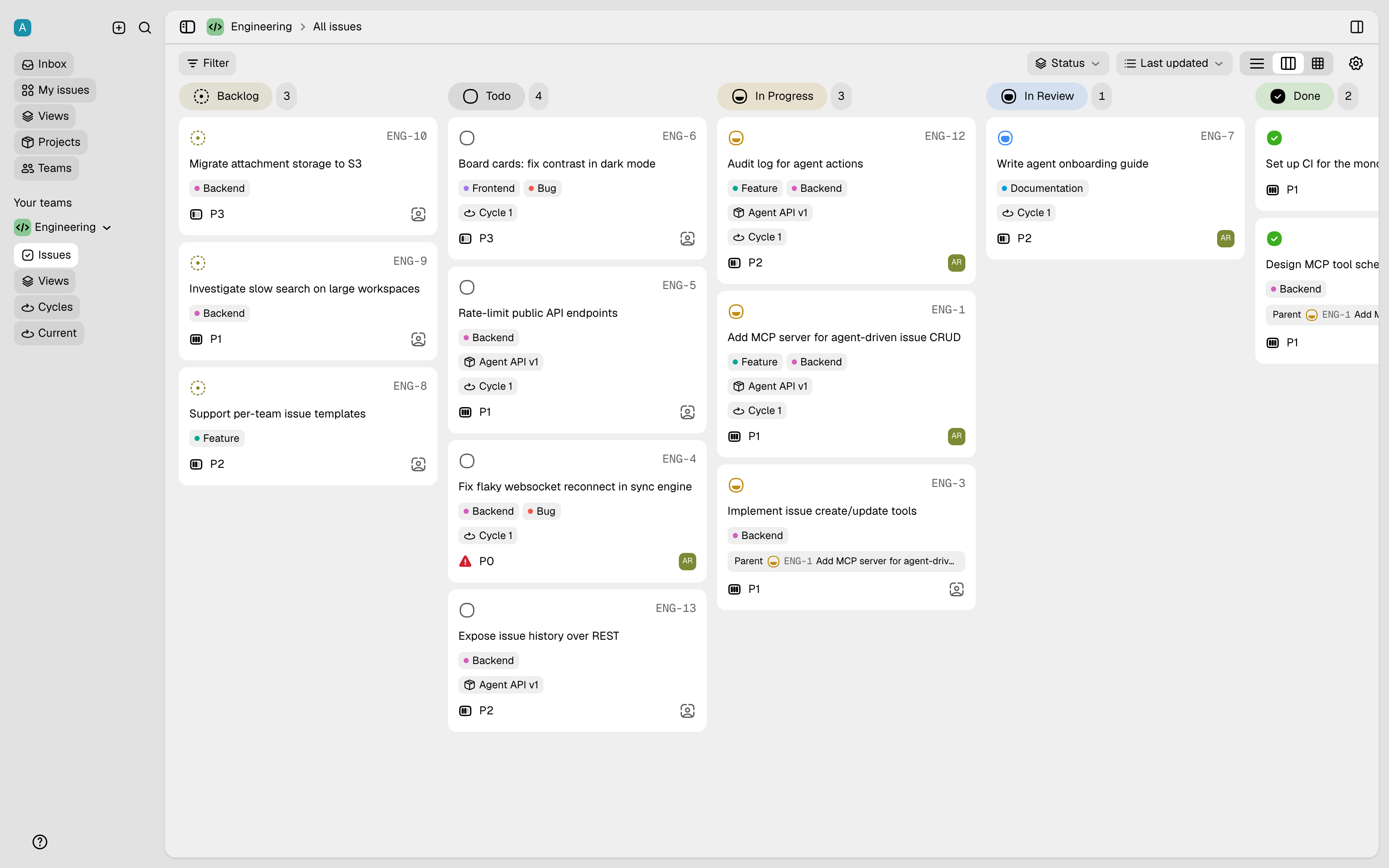
A team sees its issues in two layouts: List and Kanban. Both layouts respond to you:
- Change a value directly. In both layouts, one click changes the status, the assignee, or the priority.
- See what is important. Both layouts mark the sub-tasks, and the issues that block other issues. You therefore find a critical dependency quickly.
The list view
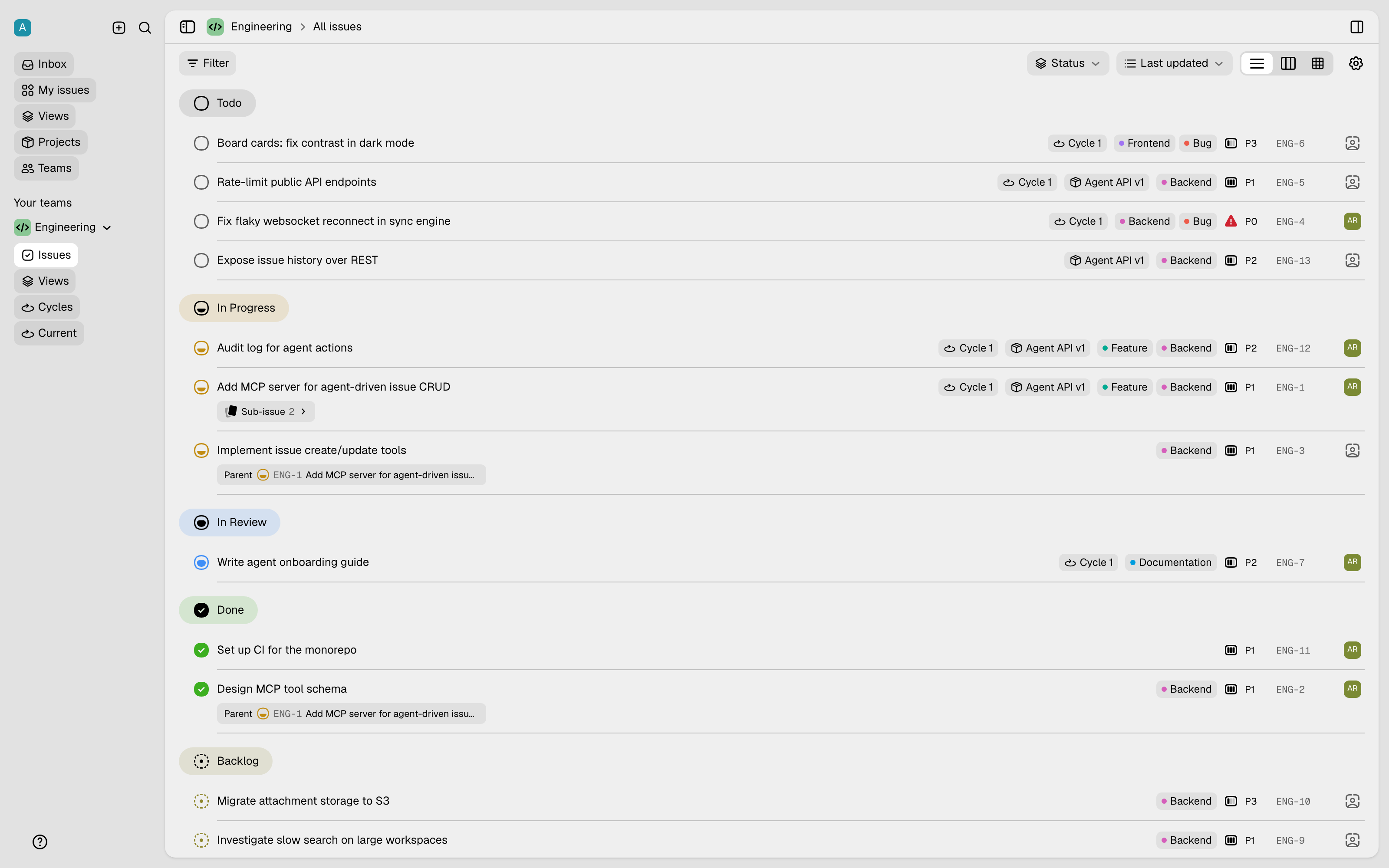
The list view is the best layout to read many issues. It shows them in order, and it groups them by status. To make the view smaller, close a group.
The Kanban view
The Kanban view is the best layout to see the workflow. It puts the issues in the columns of a Kanban board, usually one column for each status. You then see the progress immediately.